1
Create a VFX Timeline
Duplicate the picture-locked edit and create a timeline used only for VFX conform.
- 1–2 editorial video tracks
- No LUTs, adjustment layers, temp FX
- Confirm final frame rate and resolution
- Add all VFX shots

Before: complex editorial timeline

After: clean VFX timeline
2
Include Plates for Every VFX Shot
Resolve only copies media that exists in the timeline.
- Add clean plates and alternates
- Plates may be muted or parked above
- Missing here = missing in delivery
The timeline is the authority. Resolve does not scan bins.
3
Open Media Management
Use timeline-based copying, not transcode.
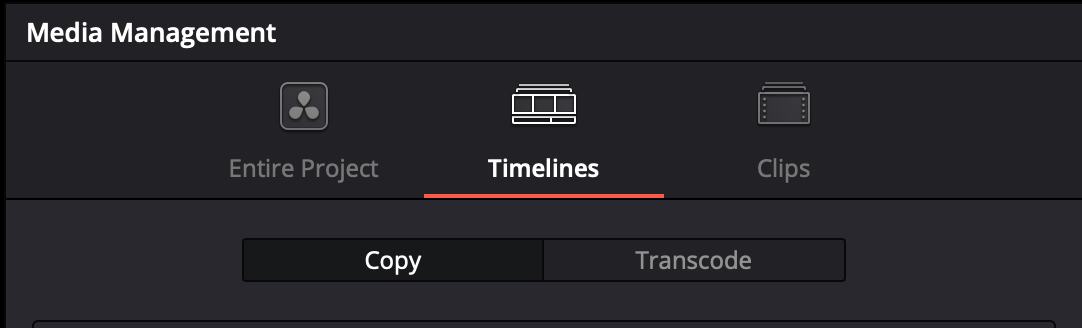
Select Timelines → Copy
4
Set VFX Copy Options
Minimal, conform-safe settings.
- Used media
- Trim keeping 5-frame handles
- Project name subfolder: on
- Transcode: off
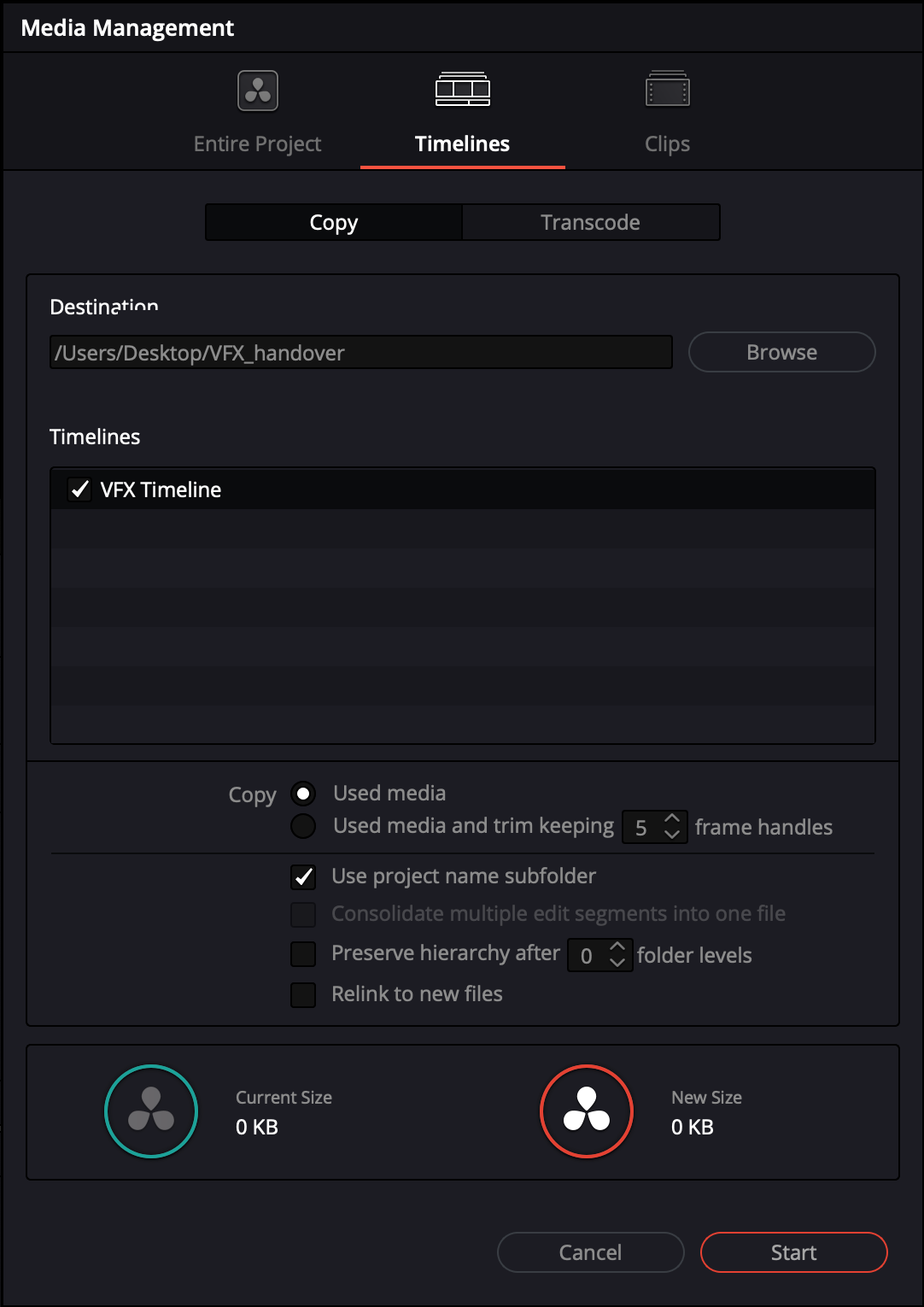
5-frame handles provide sufficient temporal context for
denoise and motion-blur analysis
without bloating the transfer.
5
Deliver
The generated folder is your VFX handover.
- Trimmed media (5-frame handles)
- All VFX plates
- Low-res reference movie with TC burn-ins
- VFX shot list